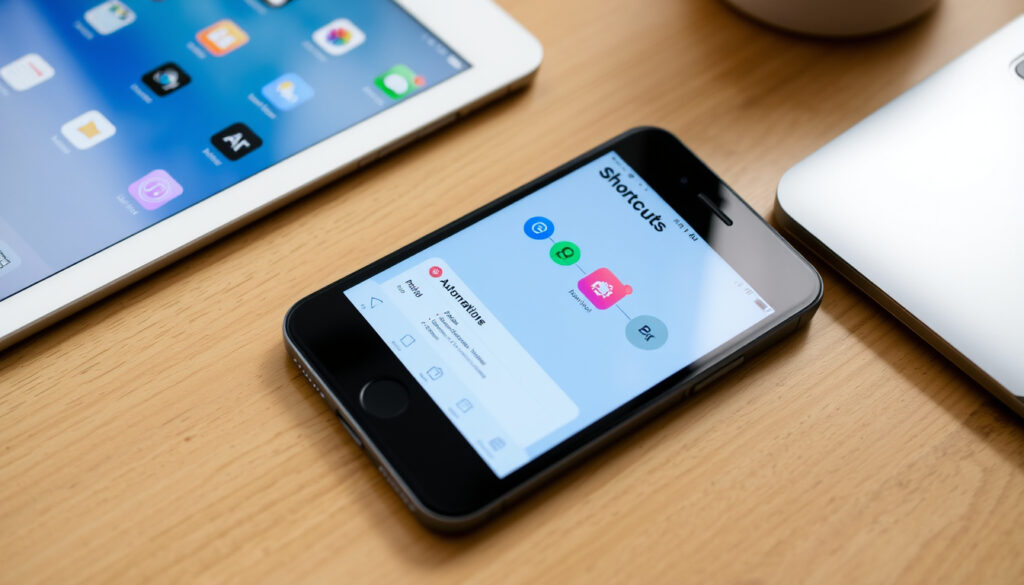
How to Use Apple Shortcuts: Beginner’s Guide for iPhone iPad Mac
There’s a quiet satisfaction in watching your iPhone handle a repetitive task on its own — pulling up a playlist when you plug into the car, or converting a batch of photos without opening a single menu. Apple Shortcuts is the engine behind that kind of magic, and once you start using it, you’ll wonder how you managed without it. This guide walks you through the essentials: finding pre-built shortcuts, creating your own, running them with a tap or voice, and keeping everything organized across iPhone, iPad, and Mac.
Shortcuts app preinstalled on: iPhone and iPad since iOS 13 ·
Built-in shortcuts available: over 300 ·
Shortcuts created monthly: tens of millions via Gallery and user creation ·
Actions per shortcut limit: no limit, but performance may vary ·
Shortcuts can integrate with: more than 300 third-party apps
Quick snapshot
- Shortcuts app is free and preinstalled on iPhones running iOS 13+ (Wired (Tech publication))
- Custom shortcuts are created by tapping + in the app and adding actions (Apple Support (Official manufacturer documentation))
- Shortcuts sync across iPhone, iPad, and Mac via iCloud (Wired (Tech publication))
- Exact number of Gallery shortcuts varies by region and iOS version
- Third-party app availability depends entirely on developer integration
- 2017: Workflow app acquired by Apple
- 2021: Shortcuts arrives on Mac with macOS Monterey
- Deeper integration with AI and on-device intelligence expected in future iOS versions
- Shortcuts will likely gain more third-party actions as developers adopt the framework
| Attribute | Value |
|---|---|
| Shortcuts app introduced | iOS 12 (2018) as separate app; integrated in iOS 13 |
| Platforms | iPhone, iPad, Mac |
| Gallery shortcuts count | over 300 as of iOS 18 |
| Action library | more than 600 actions across all apps |
| Maximum folders | 100 |
What Can You Do with Apple Shortcuts?
Apple Shortcuts is essentially a visual scripting tool. You stack actions — like “Get Latest Photos” then “Resize Image” then “Save to Files” — and the shortcut runs them all in sequence with a single tap. That means you can automate repetitive tasks, batch-edit photos, convert file formats, send scheduled messages, and pull live data from the web. The app supports more than 300 third-party apps according to Apple’s documentation, meaning your banking app, fitness tracker, and note-taking tool can all participate in these workflows.
Automate repetitive tasks like sending messages
A shortcut can grab your current location, compose a message with an ETA, and text it to a contact — all without opening a single app. For example, you could create a “Running Late” shortcut that sends your spouse an estimated arrival time based on real-time traffic data from Maps.
Batch edit photos or convert files
Rather than opening each photo individually to resize, convert to JPEG, or add a watermark, a single shortcut can process an entire album in seconds. The action library includes Over 600 actions across all apps (Apple Support (Official manufacturer documentation)), making file conversions from HEIC to PNG or PDF merging trivial.
Integrate with third-party apps and APIs
Shortcuts can talk to apps like Things 3, Bear, CARROT Weather, and even fetch JSON from public APIs. The Shortcuts can combine multiple app actions into one tap (Wired (Tech publication)) so you could, for instance, log water intake in Health, add a note in Bear, and tweet your progress — all from one shortcut.
Create custom shortcuts for any workflow
If you imagine it, there’s likely a way to build it. From a “Good Morning” shortcut that reads the weather, turns on lights via HomeKit, and starts your coffee machine, to a productivity timer that blocks distracting apps — Available on iPhone, iPad, and Mac (Apple Support (Official manufacturer documentation)).
How Do I Use Shortcuts on My iPhone?
Getting started takes about two minutes. The Shortcuts app is preinstalled on iPhone running iOS 13 or later (Wired (Tech publication)), so there’s nothing to download. You can run a shortcut by tapping it or using Siri voice command (Apple Support (Official manufacturer documentation)).
Open the Shortcuts app and browse the Gallery
The Gallery is the safest starting point. It’s organized by category — Morning Routine, Productivity, Music, and more. Apple Support says you can browse categorized shortcuts before building your own (Wired (Tech publication)).
Tap a shortcut to view its actions
Tapping one shows you every step the shortcut will run. This is a great way to learn how workflows are built before you start creating your own. Gallery offers dozens of pre-built shortcuts organized by category (Apple Support (Official manufacturer documentation)).
Tap ‘Add Shortcut’ to save it to My Shortcuts
The shortcut is then saved to your library. From there, you can run it immediately or customize it further.
Tap the shortcut to run it or say its name to Siri
For voice triggers, say “Hey Siri” followed by the shortcut’s name. This works for any shortcut you’ve created or added — making it one of the most elegant automation tools on iOS.
The Gallery shortcut method means you get a real, working automation in under 60 seconds — no configuration required. For someone who’s never automated anything, that’s the fastest on-ramp to a more efficient daily routine.
How Do I Add Things to My Shortcuts on My iPhone?
You can add a shortcut in three ways: from the Gallery, from a share sheet, or by importing a file or URL. Each method serves a different use case, and knowing them expands what you can do.
Adding shortcuts from the Gallery
The Gallery is Apple’s curated collection. You can add a shortcut by tapping ‘Add Shortcut’ in Gallery (Apple Support (Official manufacturer documentation)). These are tested and safe.
Adding shortcuts from a share sheet
When you’re on a website or in an app, tapping the share icon might reveal “Add to Shortcuts” as an option. This automatically creates a shortcut using the current page or content. Share sheet option appears for compatible websites or apps (Apple Support (Official manufacturer documentation)).
Importing shortcuts from a file or URL
The Shortcuts community shares iCloud links to their creations. Tapping a link opens the shortcut in the app, and you can tap “Add Shortcut” to import it. Custom shortcuts are built step-by-step using the action library (Apple Support (Official manufacturer documentation)).
Adding actions manually to create a new shortcut
If none of the above fits, you build from scratch — covered in the next section.
How Do I Create a Custom Shortcut on iPhone or iPad?
This is where Shortcuts transforms from a useful tool into a genuinely powerful automation platform. On iPhone and iPad, Apple says to create a custom shortcut by tapping the plus button in Shortcuts, naming it, adding actions, and then tapping Done (Apple Support (Official manufacturer documentation)).
Start a new shortcut from the My Shortcuts tab
Tap the plus button at the top right. You see a blank canvas — no actions yet. You can also create a new shortcut by touch-and-holding the Shortcuts app icon on the Home Screen and choosing Create Shortcut (Apple Support (Official manufacturer documentation)).
Search and add actions from the action list
Tap “Add Action” and search for what the shortcut should do. Actions include app-specific actions, scripts, and web content (Apple Support (Official manufacturer documentation)). Each action has configurable parameters.
Configure each action with specific parameters
Tap a field inside an action to customize it — for example, choose which album to get photos from, or set a specific message to send. You can set the shortcut to accept text, images, or other input (Apple Support (Official manufacturer documentation)).
Name the shortcut and choose an icon and color
Once actions are set, tap the gear icon to name it. You can pick from dozens of icons and colors. This matters because Siri uses the name you choose.
Test your shortcut and edit as needed
Tap the play button at the bottom. If something doesn’t work right, go back and adjust the parameters. Duplicating an existing shortcut can save time and then you can edit the duplicate (Wired (Tech publication)).
Custom shortcuts give you total control, but the first few you build will likely need a few edits. That’s normal — the action editor is forgiving and changes are instant.
How Do I Use Shortcuts on My Mac?
The Mac version of Shortcuts is available on macOS Monterey and later (Wired (Tech publication)).
Open Shortcuts app on Mac from Applications
It’s in your Applications folder. The layout is similar to iOS, with a sidebar for My Shortcuts, Gallery, and Automation.
Browse and add shortcuts from Gallery
The Mac Gallery is identical in content to the one on iPhone and iPad, so any shortcut you see there is ready to use.
Create custom shortcuts using same action library
The action library mirrors iOS. However, Mac-specific actions include Finder, Apple Mail, and window management — things that only exist on macOS.
Run shortcuts via menu bar, keyboard shortcut, or Siri
You can pin a shortcut to the menu bar, assign a keyboard shortcut in Shortcuts Settings, or trigger it with Siri. Shortcuts created on Mac automatically sync to iCloud devices (Wired (Tech publication)).
Synced with iPhone and iPad via iCloud
Any shortcut you create or add on your Mac appears on your iPhone and iPad automatically, as long as you’re signed into the same iCloud account.
What Are the Limitations of iPhone Shortcuts?
For all its power, Shortcuts has meaningful limits worth knowing before you rely on it for critical workflows.
Cannot access all system settings
Shortcuts cannot change most iOS system settings (e.g., brightness) (Apple Support (Official manufacturer documentation)). Some settings are protected for security reasons.
Some actions require user input on each run
If an action needs data — like a file to process or a contact to message — it’ll ask for that input each time. You can automate this only if the input can be fetched automatically.
Privacy restrictions for accessing contacts, photos, etc.
Actions that access personal data require explicit permission (Apple Support (Official manufacturer documentation)). This means even if you automate a task, the first run may prompt you to approve access.
Performance may slow with very complex shortcuts
Shortcuts with dozens of actions, especially those calling third-party APIs or processing many files, can take several seconds to complete.
Not all apps expose actions to Shortcuts
Third-party app support depends on developer integration (Apple Support (Official manufacturer documentation)). If your favorite app hasn’t adopted Shortcuts, you can’t automate it.
Shortcuts cannot run continuously in the background (Apple Support (Official manufacturer documentation)). If your workflow needs to monitor something over time, you’ll need a different tool.
Can You Put a Specific Folder to a Shortcut on an iPhone?
Yes — and it’s one of the most underused features. Folders are available in the Shortcuts app on iPhone, iPad, and Mac (Apple Support (Official manufacturer documentation)).
Creating folders in My Shortcuts tab
Tap the folder icon at the bottom of the My Shortcuts list, then “New Folder.” You can create up to 100 folders (Apple Support (Official manufacturer documentation)).
Moving shortcuts between folders
Tap and hold a shortcut, then drag it into the desired folder. Each folder can hold an unlimited number of shortcuts (Apple Support (Official manufacturer documentation)).
Using folders to group related shortcuts
Common groupings include “Work”, “Home”, “Health”, and “Travel”.
Naming and color coding folders for easier access
Tap the folder name to edit it, and choose a color to make scanning faster.
As your shortcut library grows past 20 or 30 items, folders become essential. A poorly organized library is barely faster than doing tasks manually.
“The Shortcuts app is one of the most powerful tools Apple has shipped, but it requires a shift in thinking — from tapping apps to designing workflows.”
— Wired (Tech publication)
“I started with Gallery shortcuts. Within a week I had built my own morning routine. Honestly, it’s the thing that makes me look forward to using my phone.”
— Reddit r/shortcuts community (User-generated forum)
Related reading: **Best Apps for Productivity Tips: Top Tools Ranked** · **How to Secure Home Wi-Fi: Complete Step-by-Step Guide**
support.apple.com, youtube.com, youtube.com, youtube.com, igeeksblog.com, youtube.com
Frequently Asked Questions
Is the Shortcuts app free on iPhone?
Yes. It is preinstalled on all iPhones running iOS 13 or later, with no additional cost or in-app purchases for basic functionality.
Can I run shortcuts without opening the app?
Yes — you can tap the shortcut from the Shortcuts widget on the Home Screen, say its name to Siri, or assign a keyboard shortcut on Mac.
Do shortcuts work on iPad?
Yes. The Shortcuts app on iPad functions identically to iPhone, with the same Gallery, action library, and folder system.
How do I delete a shortcut?
Long-press the shortcut in My Shortcuts, choose Delete, or swipe left on it and tap Delete.
Can I share a shortcut with someone else?
Yes. Tap the shortcut, then tap the share icon to send it via iCloud link, AirDrop, Messages, or Mail.
What if a shortcut stops working after iOS update?
Check the Apple Shortcuts User Guide for any changes to actions. Some apps update their Shortcuts integration, which may require adjusting parameters.
Are there any security risks using third-party shortcuts?
Yes. Shortcuts can access your data and perform actions on your behalf. Only add shortcuts from trusted sources, and review the actions before adding them.
How do I undo a change to a shortcut?
Shortcuts does not have an undo button. Duplicate the shortcut before editing, or use the duplicate trick described in the Wired guide.
The Shortcuts app is Apple’s most under-advertised productivity tool, hidden in plain sight on every iPhone, iPad, and Mac. Its real power isn’t in the 300+ Gallery templates — it’s in the 600+ actions waiting to be assembled into something that fits your life exactly. For everyday users, the fastest path to value is choosing one Gallery shortcut today and running it. For power users, the action editor is open, flexible, and deep enough to replace entire apps. For anyone on iOS 13+ or macOS Monterey+, the cost of entry is zero; the cost of ignoring it is the time you’re about to waste repeating the same task tomorrow.
More related posts
 Chicken and Mushroom Pie: Recipe & Mistakes Fix
 Black New Balance 574: Ireland Guide to Mens, Womens & Kids
 A and C Homestore – Status, History and UK Facts
 Truth or Dare Questions:300+ Truths & Dares for Friends & Couples
 110 USD to NZD – Live Rate, History and Best Transfer Options
 Daylight Saving Time Change 2026: Ireland Dates & Sleep Tips
 Are Black Friday travel deals worth it? A fact-checked guide