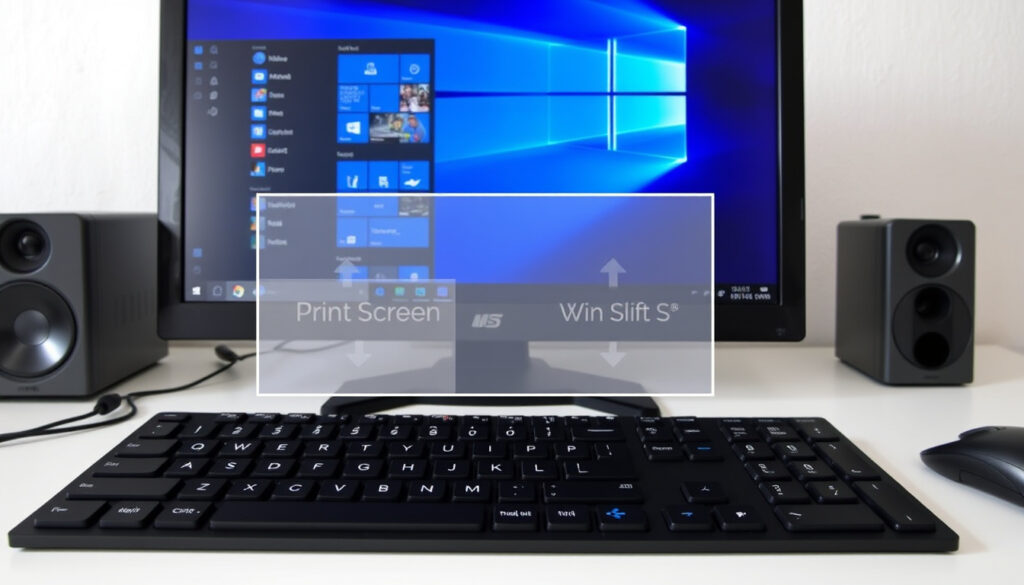
How to Screenshot on Windows: Shortcuts for 11/10/7
Whether you’re fixing a tech problem for a friend or documenting an error message, screenshots have become one of those everyday tasks you don’t think about until your shortcut suddenly stops working. Windows actually gives you several built-in ways to capture your screen — and the options have shifted significantly between Windows 10 and Windows 11. This guide covers every native method, explains where your files actually end up, and walks through the fixes that actually work when something goes wrong.
Primary Shortcut: Windows + Shift + S · Full Screen Capture: PrtScn · Window Capture: Alt + PrtScn · Auto-Save Folder: Pictures > Screenshots
Quick snapshot
- Windows logo key + Shift + S opens the Snipping Tool overlay (Microsoft Support)
- The Snipping Tool offers 4 capture modes: rectangular, freehand, window, and full-screen (Microsoft Learning Center)
- Alt + Print Screen captures only the active window (University of Southampton)
- Exact behavior of Print Screen key on Windows 7 varies by build version
- Third-party security software may override or block certain shortcut combinations without clear notification
- Windows 11 (released October 2021) changed Print Screen behavior — it now opens Snipping Tool instead of directly saving (Microsoft YouTube)
- Windows + Shift + S shortcut established as primary method since Windows 10 era (Microsoft Support)
- Snipping Tool receives regular feature updates in Windows 11 cumulative releases
- Windows + Shift + R enables video clip capture — expanding screenshot tool into full capture suite
The table below summarizes key screenshot methods and their behavior across Windows versions.
| Feature | Details |
|---|---|
| Default Tool | Snipping Tool |
| Quick Shortcut | Windows + Shift + S |
| Save Path | C:\Users\[username]\Pictures\Screenshots |
| Versions Covered | Windows 10/11 |
How do I take a screenshot on Windows?
Windows offers three native ways to capture your screen, and the right method depends on what you actually need. The fastest option is the Print Screen key — typically labeled PrtSc, PrtScn, or PrntScrn and located in the top-right corner of most keyboards (Microsoft Learning Center). On Windows 10, pressing PrtScn alone copies your entire screen to the clipboard, ready to paste anywhere. On Windows 11, that same key opens the Snipping Tool instead — a change that took many users by surprise when the update rolled out in 2021 (Microsoft YouTube).
Full screen screenshot
- Windows 10: Press PrtScn — the screen flashes briefly, and the image sits in your clipboard. Open Paint or Word, press Ctrl + V, and save.
- Windows 11: Press PrtScn — the Snipping Tool opens immediately, letting you choose your capture mode. Use the floppy disk icon to save directly as a file.
- Universal full-screen save: Hold Windows + PrtScn — this saves a PNG directly to your Pictures > Screenshots folder on both versions.
Active window screenshot
Need just one window without the background clutter? Press Alt + Print Screen. This captures only the currently active window and places it in your clipboard (University of Southampton eLearning). It’s ideal for capturing error dialogs, browser windows, or single application views without needing to crop afterward.
Custom area screenshot
Windows + Shift + S gives you the most control. After pressing the shortcut, your cursor becomes a crosshair — drag to select any rectangular or freeform area on your screen. The Snipping Tool overlay appears instantly, offering four capture modes: rectangular selection, freehand selection, window capture, and full-screen capture (Microsoft Learning Center). Once captured, a thumbnail pops up in the lower-right corner of your screen where you can edit, annotate, or save immediately.
For those on Windows 11 wanting video clips rather than still images, Windows + Shift + R opens the overlay to record a screen capture (Microsoft Support).
If your keyboard requires a Function key to activate Print Screen — common on compact laptops and some HP machines — you’ll need to press Fn + PrtScn. Check your keyboard documentation if the shortcut isn’t responding.
What are the Ctrl keys for screenshots?
Unlike macOS, Windows doesn’t use Ctrl + Print Screen as a standard screenshot shortcut. Ctrl + PrtScn does something different: when pressed with an open menu, the entire screen turns gray, letting you manually draw the exact area you want to capture (Microsoft Support). This is useful for snipping irregular shapes or capturing from applications with complex menus.
Snipping Tool shortcuts
- Windows + Shift + S: Opens the Snipping Tool overlay — the fastest way to grab a custom area
- Windows + Shift + R: Opens the overlay for video clip capture (Windows 11)
- Ctrl + V: Pastes any screenshot from the clipboard into your active application (Microsoft Learning Center)
- Ctrl + R: Toggles the ruler tool inside the Snipping Tool editor (Windows 11)
Game Bar shortcut
Windows + G opens the Xbox Game Bar — primarily designed for gaming overlays, but it includes a screenshot button. Note that Game Bar may conflict with the Windows + Shift + S shortcut on some systems, so you might need to disable one in Settings.
On Windows 10 specifically, the Print Screen shortcut must be enabled in Ease of Access settings under Keyboard — it doesn’t work out of the box on that version (Driver Easy troubleshooting guide). Users who upgraded from Windows 7 often miss this step entirely.
How can I screenshot my screen?
Beyond keyboard shortcuts, Windows provides two built-in tools for capturing your screen: the Snipping Tool and the Xbox Game Bar. Both come pre-installed and require no additional downloads.
Using Snipping Tool
The Snipping Tool is Windows’ dedicated screenshot utility, available since Windows Vista but significantly improved in Windows 10 and 11. To access it without a shortcut, open the Start menu, type “snipping tool,” and select it from the results (Microsoft Support official documentation). Once open, click “New” to begin a capture.
After capturing, the Snipping Tool lets you edit screenshots with highlighters, crop tools, colors, and drawing tools with various shapes and fonts. Windows 11 added the ability to add emojis, arrows, and a ruler to your annotations (Microsoft YouTube channel walkthrough). On touchscreen devices, you can draw directly on screenshots using a finger or stylus (Microsoft Learning Center guide).
Screenshots can be shared directly from the Snipping Tool using the share option, printed, or opened in another application via the menu options (Microsoft Learning Center).
Xbox Game Bar
Press Windows + G to open the Game Bar overlay. Click the camera icon to capture a screenshot of your current view. While designed for gaming, it works for any application. The Game Bar also offers a record option if you need video footage.
For users who need more automation, Auto Hotkey is a free utility that can be configured to make the Print Screen key automatically save full-screen screenshots to your PC instead of just copying to the clipboard (Tech YouTube Channel tutorial). This is particularly useful for power users on Windows 10 who prefer the old Print Screen behavior.
The Snipping Tool thumbnail appears in the lower-right corner after capture — a small but useful detail many users miss. That thumbnail is your direct link to editing and saving without opening a separate application.
Where do Ctrl+Shift+S screenshots go?
Despite the name similarity, Ctrl + Shift + S isn’t a standard Windows screenshot shortcut — what actually works is Windows + Shift + S. After pressing that combination, your screenshot doesn’t automatically save to a file. Instead, it’s copied to your clipboard, ready to paste (Microsoft Learning Center reference). A notification preview appears briefly in the lower-right corner showing what you captured.
Default folder path
If you use Windows + PrtScn to capture your full screen, the file saves automatically to your user folder. Screenshots are stored at C:\Users\[your username]\Pictures\Screenshots. On Windows 11, the Snipping Tool also offers a floppy disk icon to save manually to any location you choose (Microsoft Learning Center guide).
Finding saved files
Open File Explorer and navigate to This PC > Pictures > Screenshots. If you use the Snipping Tool’s “Save As” option, you can choose custom file names and locations. For quick access, right-click the Screenshots folder and select “Pin to Quick Access” — it will appear in the left sidebar of every File Explorer window.
How to change the save location
Unfortunately, Windows doesn’t offer a built-in setting to change the default Screenshots folder location. You can work around this by creating a folder wherever you prefer, then right-clicking it and selecting “Include in library” > Pictures. When saving from the Snipping Tool, browse to your preferred location manually.
Windows + Shift + S is the clipboard method — paste it where you need it. Windows + PrtScn is the auto-save method — it drops a file directly into your Screenshots folder. Knowing which shortcut does which eliminates the confusion about where your screenshots went.
Why is Ctrl+Shift+S not working?
When Windows + Shift + S isn’t responding, the issue is almost always one of four things: disabled notifications, conflicting shortcuts, outdated Snipping Tool, or keyboard hardware quirks. Here’s a systematic approach to fix it.
Common fixes
- Enable notifications: When the Snipping Tool’s notification is disabled, its overlay shortcut breaks. Go to Settings > System > Notifications and ensure notifications are turned on for the Snipping Tool (Driver Easy support article).
- Turn on clipboard history: Windows 10 and 11 include clipboard history that can interfere with screenshot functionality when disabled. Enable it via Settings > System > Clipboard (Driver Easy troubleshooting guide).
- Reset or reinstall Snipping Tool: Open Settings > Apps > Installed apps, find the Snipping Tool or Snip & Sketch, and select Repair. If that doesn’t work, uninstall and reinstall from the Microsoft Store (Driver Easy support article).
- Install Windows updates: Some screenshot issues are resolved by cumulative updates. Check for updates via Settings > Windows Update (Driver Easy knowledge base).
- Update keyboard drivers: Outdated keyboard drivers can cause Print Screen and related keys to stop responding entirely (Tech YouTube Channel fix guide). Visit your PC manufacturer’s website or use Device Manager to check for driver updates.
Laptop and HP specifics
On many laptops — particularly HP models and ultrabooks with compact keyboards — the Print Screen key shares hardware space with another function, requiring the Fn key to activate. If nothing happens when you press PrtScn, try Fn + PrtScn. Some laptops have a Function key lock (Fn Lock or F Lock) that toggles this behavior.
If you’re using an external keyboard attached to a laptop, the external keyboard’s Print Screen often works when the built-in one doesn’t — useful as a diagnostic test.
No Windows key workarounds
Some keyboards — particularly older models or non-standard layouts — don’t have a Windows key. In these cases, the Snipping Tool overlay shortcut won’t work as designed. Your options include:
- Open the Snipping Tool manually from the Start menu and click “New”
- Use Alt + Print Screen for active window captures
- Download a third-party tool like ShareX or Greenshot that allows custom shortcut mapping
- Use Auto Hotkey to remap a key combination that works on your keyboard
Third-party security software sometimes intercepts global keyboard shortcuts for privacy or screen recording protection. If you recently installed new security software and your screenshot shortcuts stopped working, check the software’s shortcut and privacy settings.
How do I take a screenshot on Windows 11 vs. Windows 10?
The comparison table below highlights the key differences in screenshot behavior between these two Windows versions.
| Method | Windows 10 | Windows 11 |
|---|---|---|
| PrtScn alone | Copies to clipboard | Opens Snipping Tool |
| Windows + PrtScn | Saves to Pictures > Screenshots | Saves to Pictures > Screenshots |
| Alt + PrtScn | Captures active window to clipboard | Captures active window to clipboard |
| Windows + Shift + S | Opens Snipping Tool overlay | Opens Snipping Tool overlay |
| Snipping Tool editing | Basic tools | Emojis, arrows, ruler, more shapes |
| Video capture | Not available via Snipping Tool | Windows + Shift + R for clips |
The single biggest difference is the Print Screen key. In Windows 10, PrtScn copies to the clipboard. In Windows 11, it opens the Snipping Tool — a design choice Microsoft made to encourage users toward their enhanced editing tools. Users upgrading from Windows 10 often press PrtScn expecting a clipboard paste and instead find themselves in the Snipping Tool overlay, confused about why their image didn’t appear in their document.
What this means: if you’ve memorized the old PrtScn behavior, you’ll need to adjust on Windows 11. Use Windows + PrtScn for automatic file saves, or press Ctrl + V immediately after PrtScn if you still need clipboard behavior.
Steps: Taking a Screenshot on Windows 11
The fastest workflow for capturing and saving a screenshot on Windows 11 takes under 10 seconds once you know the path.
- Choose your shortcut: Windows + Shift + S for a custom area, Windows + PrtScn for a full screen saved automatically, or PrtScn alone to copy to clipboard
- Capture the screen: Drag to select an area (Windows + Shift + S) or press the key for full/window capture
- Edit if needed: Click the thumbnail in the lower-right corner to add annotations, highlights, or text
- Save the file: Click the floppy disk icon or press Ctrl + S to save as PNG, JPEG, or other format
- Access your file: Open File Explorer > Pictures > Screenshots, or right-click the thumbnail and choose “Open file location”
Pin the Screenshots folder to Quick Access in File Explorer for one-click access. Right-click the folder > Show more options > Pin to Quick Access.
“The Snipping Tool thumbnail appears in the lower-right corner of the screen after capturing a screenshot, allowing immediate editing and sharing without opening a separate application.”
— Microsoft Learning Center (Windows documentation)
“When Ctrl + PrtSc is pressed with an open menu, the entire screen changes to gray, allowing manual selection of the capture area. This mode provides maximum flexibility for irregular shapes.”
— Microsoft Support (Official documentation)
For Windows users who need screenshots regularly, the choice between methods boils down to workflow: clipboard-based editing for quick shares, or auto-save for archival purposes. Windows + Shift + S covers most use cases — the overlay is fast, the editing tools are built in, and the learning curve is flat. The main gotcha is the Windows 11 Print Screen behavior change, which catches almost everyone upgrading from Windows 10. Once you know it, a simple habit — pressing Ctrl + V after PrtScn if you need the clipboard — eliminates the frustration.
Related reading: Solitaire: Play It Online Free, No Download or Ads · Best Free Online Cryptic Crosswords: Best Daily Sites
Laptop users often hit snags with Print Screen keys, but Windows shortcuts and fixes guideWindows shortcuts and fixes guide} details proven tweaks for seamless captures on versions 11 through 7.
Frequently asked questions
How do I take a screenshot on Windows 11?
Press Windows + Shift + S to open the Snipping Tool overlay, then drag to select any area. Alternatively, press Windows + PrtScn to capture the full screen and save directly to your Pictures > Screenshots folder.
How do I take a screenshot on a Windows laptop?
Laptops use the same shortcuts as desktops. Press Windows + Shift + S for the Snipping Tool. On compact keyboards, you may need to press Fn + PrtScn if the Print Screen key requires the Function key to activate.
How do I screenshot on Windows HP?
HP laptops typically follow standard Windows shortcuts. Windows + Shift + S works universally. If PrtScn doesn’t respond, try Fn + PrtScn — HP’s compact keyboards often require the Function key for Print Screen functionality.
How do I take a screenshot on Windows without Windows key?
Open the Snipping Tool manually from the Start menu, or press Alt + Print Screen to capture the active window. Third-party tools like ShareX allow custom shortcut mapping if your keyboard lacks a Windows key entirely.
How do I take a screenshot on Windows 10?
Press Windows + Shift + S for the overlay, or PrtScn alone to copy to clipboard (enable the shortcut in Ease of Access > Keyboard settings first). Windows + PrtScn auto-saves a full screen to Pictures > Screenshots.
How do I find my screenshots on PC?
Screenshots saved automatically go to C:\Users\[your username]\Pictures\Screenshots. For quick access, open File Explorer and pin the Screenshots folder to Quick Access in the left sidebar.
How do I take a screenshot with keyboard on PC?
Press PrtScn for full screen (copies to clipboard on Windows 10, opens Snipping Tool on Windows 11). Press Alt + PrtScn for the active window only. Press Windows + Shift + S for the Snipping Tool overlay with custom area selection.
How do I screenshot on Windows 7?
Windows 7 has a basic Snipping Tool available via Start > Programs > Accessories > Snipping Tool. Press PrtScn to copy to clipboard, then paste into Paint or another application. Note that Windows 7 reached end of support in January 2020 — upgrading is strongly recommended.
More related posts
 IND vs AUS T20 2025: Results, Head-to-Head & Updates
 Best Household Budgeting Apps: Top Picks & Reviews 2026
 Britomart Train Station Rename: Why It’s Now Waitematā Station
 Beauty and the Beast: Cast, Corsets, and the Belle Autism Theory
 Things to Do in Singapore: Top Attractions & Tourist Rules
 200 Pounds in kg: Exact Conversion, Stone & BMI Health Facts
 Credit Card Application Form: How to Fill Out & Submit
 Black New Balance 574: Ireland Guide to Mens, Womens & Kids